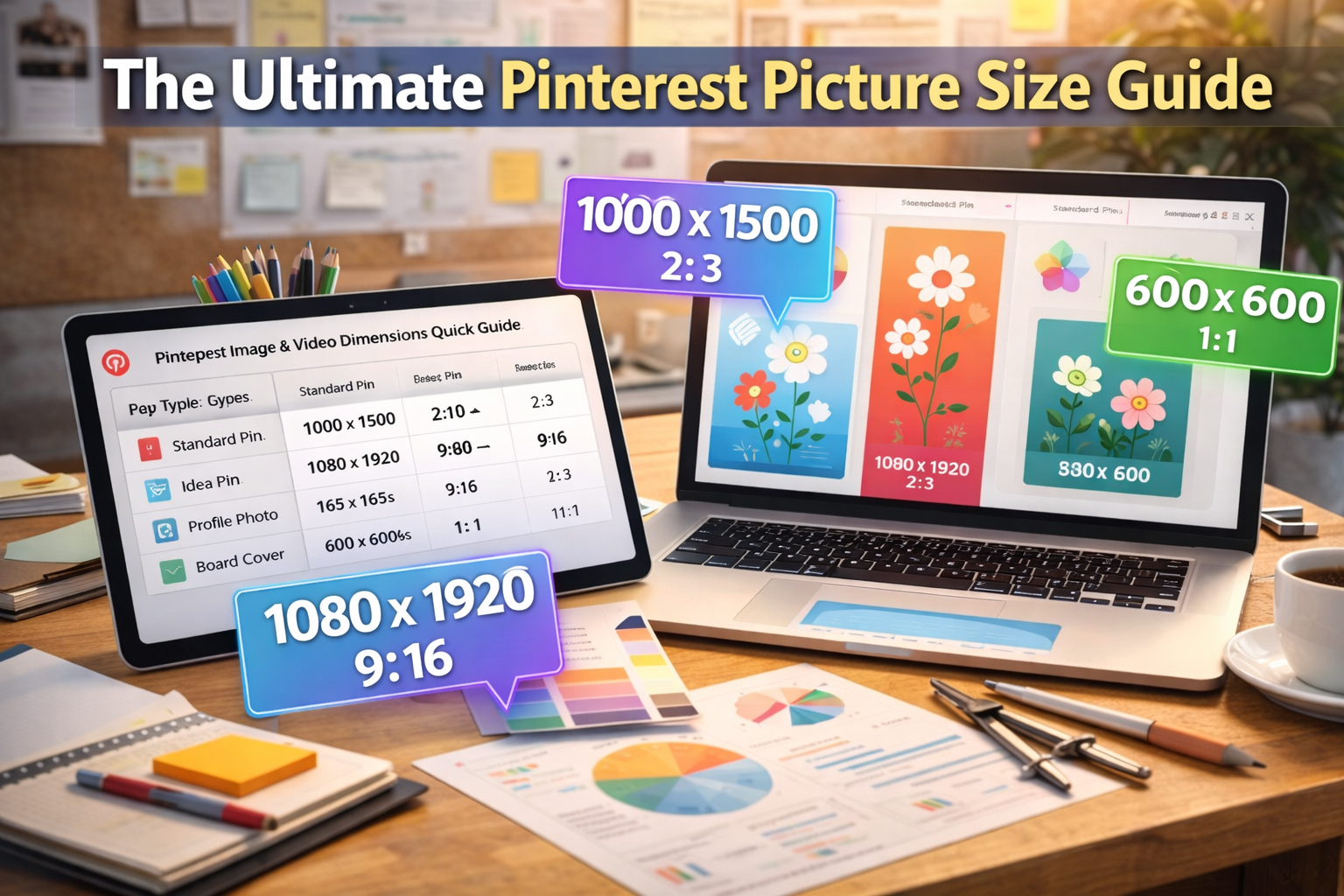
If you’re a busy creator who just needs the right numbers—and fast—this is the cheat sheet for you.
Nailing the correct Pinterest picture size from the start is the key to making sure your content looks polished and doesn’t get awkwardly cropped when it hits the feed.
Your Quick Pinterest Picture Size Reference Chart
Below is a super simple, easy-to-scan table that breaks down every important Pinterest dimension you’ll need.
I’ve pulled together the recommended pixel sizes and aspect ratios for all the major formats you’ll be using, from Standard Pins and Idea Pins all the way to Board Covers and your Profile Photo.
This infographic gives you a great visual on the most common pin widths and aspect ratios creators are working with right now.
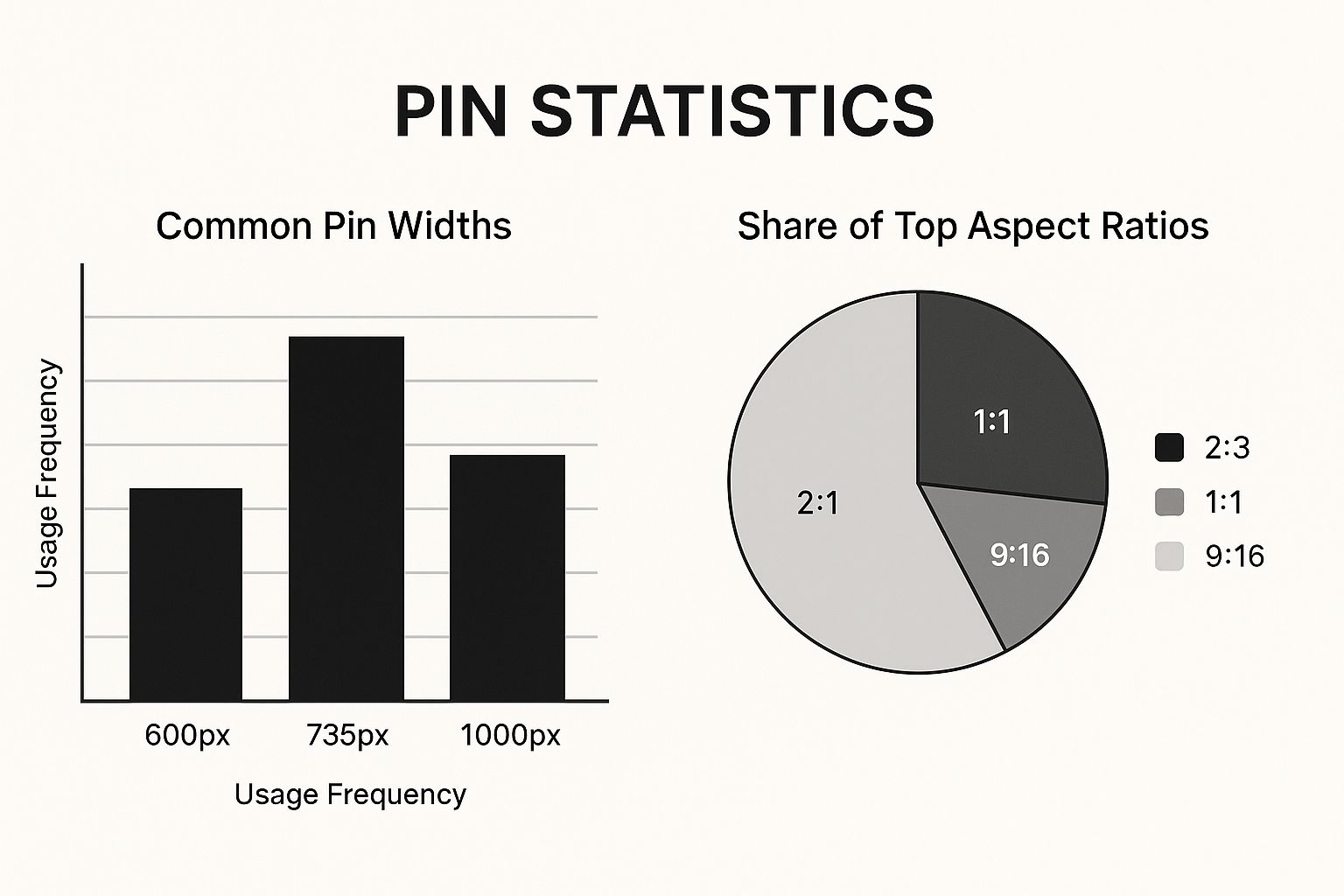
As you can see, that vertical 2:3 aspect ratio is king on Pinterest, and sticking to it is one of the easiest ways to boost your visibility.
Pinterest Image and Video Dimensions Quick Guide
Here’s a quick-lookup table with all the essential specs. Bookmark this page so you can find it anytime you’re creating new content.
| Pin Type / Asset | Recommended Size (Pixels) | Aspect Ratio | Notes |
|---|---|---|---|
| Standard Pin | 1000 x 1500 | 2:3 | This is the gold standard for getting the most screen real estate. |
| Idea Pin | 1080 x 1920 | 9:16 | The full-screen vertical format, perfect for story-style content. |
| Video Pin (Std) | 1000 x 1500 | 2:3 | Use the standard vertical ratio. Keep videos short and sweet—under 15 minutes is best. |
| Board Cover | 600 x 600 | 1:1 | A simple square image keeps your profile looking clean and organized. |
| Profile Photo | 165 x 165 | 1:1 | This gets displayed as a circle, so make sure your face or logo is centered. |
This table covers the most frequent use cases on the platform.
Following these guidelines is your first and most important step toward creating content that really performs.
If you’re diving deeper into video, you might find this comprehensive social media video sizes guide helpful for other platforms, too.
Getting Standard Pin Dimensions Right
The Standard Pin is your bread and butter on Pinterest. It’s the most common format you’ll see, and getting its dimensions right is the first step to making your content stand out.
The magic number here is the 2:3 aspect ratio.
Why is this ratio so important? It’s simple: Pinterest is built for mobile.
The vast majority of users are scrolling on their phones, and a vertical 2:3 pin fills their screen perfectly, grabbing their attention without getting awkwardly cropped.
If you use a different shape, like a square or a wide horizontal image, Pinterest will likely truncate it in the feed.
This means your carefully crafted branding or call-to-action could get cut off, hurting your engagement before anyone even clicks.
Key Technical Specs
To make sure your Standard Pins look sharp and get the best possible distribution, stick to these technical guidelines. Think of this as your pre-flight checklist before you publish.
- Recommended Size: Aim for 1000 x 1500 pixels. This is the sweet spot for a high-resolution image that stays crisp on any screen.
- Minimum Size: You can go as low as 600 x 900 pixels, but I wouldn’t recommend it. Smaller images can look pixelated and may not perform as well.
- File Type: Stick with high-quality PNG or JPG files.
- File Size: Keep your image under 20 MB to avoid any upload issues.
Pinterest’s own 2025 guidelines show that pins with a 2:3 ratio can get up to 25% more engagement.
The platform’s algorithm is designed to reward content that fits its vertical-first format.
For a deeper dive into platform trends, check out the latest user growth data from Statista’s detailed reports.
Why Vertical Is the Only Way to Go
At the end of the day, the Pinterest algorithm favors vertical images. A taller pin simply commands more real estate in the feed, making it much harder for someone to scroll past without noticing it.
By using the 1000 x 1500 pixel size, you guarantee your entire design is visible, your text overlays are easy to read, and your call-to-action is clear.
Nailing the dimensions is a foundational step, and once you have that down, you can learn more about how to fully optimize your pins for maximum reach.
It’s a simple but powerful way to drive more traffic and grow your audience.
Optimizing Long and Infographic Pin Sizes
If you’re in a niche like DIY, recipes, or education, long and infographic-style Pins are your secret weapon.
They give you the real estate to tell a complete story, whether it’s a step-by-step tutorial, a detailed list, or a data-packed visualization.
This extra vertical space is a huge advantage for packing in more value.
While a Standard Pin has its place, these longer formats are true scroll-stoppers.
Their sheer height naturally makes people pause in a busy feed, giving you a better shot at getting them to engage with your content.
This makes them perfect for tutorials or anything that flows best from top to bottom.
Recommended Dimensions for Long Pins
The trick is to keep the width consistent while stretching the height. Pinterest has some clear guidelines to make sure your Pin looks great and doesn’t get awkwardly cropped in the main feed.
- Optimal Long Pin Size: The sweet spot for this format is 1000 x 2100 pixels. This gives you a 1:2.1 aspect ratio that offers plenty of space without being excessive.
- Maximum Infographic Size: You can push the height all the way to 1000 x 3000 pixels (a 1:3 ratio), but proceed with caution.
Go any longer than a 1:2.1 ratio, and you run the risk of your Pin being cut off in the feed, hiding your core message.
While some data suggests well-made infographics can drive serious traffic, that advantage disappears if the visible part of your design doesn’t immediately grab attention.
You can find more insights on this in Neil Patel’s detailed analysis.
Designing for Truncation
Since getting cut off is a real possibility, you need to design defensively. Always place your most important elements—your title, your main hook, and your logo—at the very top of the image.
Think of the top 1000 x 1500 pixels as your “safe zone.” This is the part of your Pin that’s almost guaranteed to be visible in the feed.
It has to be compelling enough on its own to make someone stop, get curious, and click to see the rest.
Getting Your Video and Idea Pin Sizing Just Right
Video and multi-page Idea Pins are absolute game-changers for grabbing attention on Pinterest. But they’re a different beast than static images.
To get them to perform, you have to nail the dimensions, otherwise, you risk your content getting awkwardly cropped or failing to make an impact.
The key here is thinking mobile-first. Both of these formats are designed for a full-screen, vertical experience that completely takes over a user’s phone screen.
This immersive view is what keeps people watching.
The Best Dimensions for Video and Idea Pins
Sticking to the right specs is non-negotiable if you want a clean, professional look.
This is how you avoid those distracting black bars or having key parts of your video cut off.
Here are the numbers you need to know:
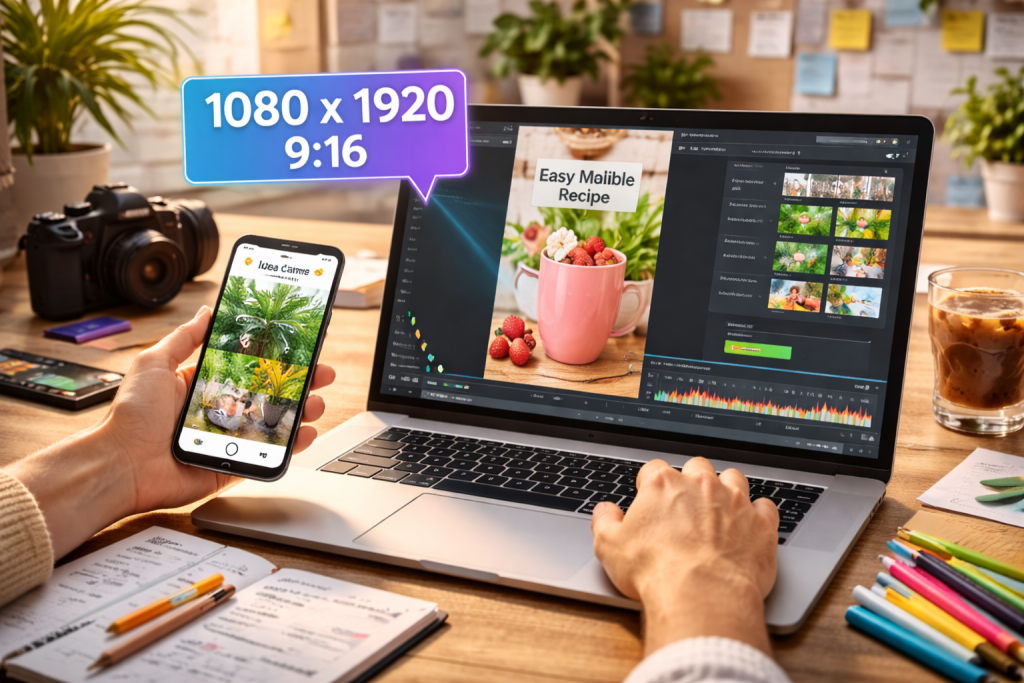
- Recommended Size: Aim for 1080 x 1920 pixels. This is the sweet spot.
- Aspect Ratio: That works out to a 9:16 aspect ratio, which is perfect for full-screen vertical viewing.
- File Size (Images): If you’re using static images within an Idea Pin, each one needs to be under 20 MB.
- File Size (Videos): For video files, you have a lot more room to play with—keep them under 2 GB.
While 9:16 is the gold standard, Pinterest is flexible with regular Video Pins. You can also use square (1:1) or the classic 2:3 vertical ratio.
For Idea Pins, though, I strongly suggest you stick to 1080 x 1920 pixels for every single page. This creates that seamless, cohesive story-like flow that makes them so effective.
Pro Tip: Don’t sleep on your Video Pin’s cover image! This is the thumbnail people see before they hit play, and a great one can make or break your click-through rate. Make it bright, clear, and give a compelling preview of what your video is all about.
Sizing Your Carousel Pins and Ads
When you’re running paid campaigns on Pinterest, getting your image sizes right is absolutely crucial.
These formats—especially Carousels and various ad types—have their own set of rules that you need to follow for your content to look its best and perform well.
Getting these details wrong can mean a wasted ad spend.
Carousel Pins are a powerful tool for storytelling or showcasing a range of products in one post. They give you the flexibility to go with either a classic vertical look or a clean square format.
The same goes for Shopping Ads, where high-quality, perfectly sized images are non-negotiable for driving those clicks and sales.
Carousel and Ad Sizing Requirements
To make sure your paid content hits the mark, stick to these precise dimensions.
It’s important to remember that for Carousels, each individual image or “card” needs to meet these specifications.
- Square Format: A 1000 x 1000 pixels image at a 1:1 aspect ratio is a solid choice for Carousels and many standard ad formats.
- Vertical Format: You can also opt for the recommended 1000 x 1500 pixels size with a 2:3 aspect ratio to maintain that traditional Pin feel.
- Card Count: Your Carousel Pin can include anywhere from 2 to 5 images.
- File Size: Keep each image file under the 20 MB limit to avoid upload issues.
Pro Tip: When you’re putting together a Carousel, think of it as a single, cohesive story.
Using consistent colors, fonts, and a unified photography style across all the cards makes for a much smoother and more professional experience as people swipe.
This small detail can make a big difference in engagement and how users perceive your brand.
When you start exploring the full range of paid options, you’ll find that different ad formats have slightly different requirements.
Here’s a quick-reference table to help you keep everything straight.
Pinterest Ad Format Specifications
| Ad Format | Recommended Size (Pixels) | Aspect Ratio | File Type |
|---|---|---|---|
| Static Ad | 1000 x 1500 | 2:3 | .PNG, .JPG |
| Video Ad (Standard) | 1000 x 1500 | 2:3 or 1:1 | .MP4, .MOV |
| Video Ad (Max Width) | 1080 x 1920 | 9:16 | .MP4, .MOV |
| Carousel Ad | 1000 x 1500 or 1000 x 1000 | 2:3 or 1:1 | .PNG, .JPG |
| Shopping Ad | 1000 x 1500 | 2:3 | .PNG, .JPG |
This table should serve as a handy guide, but always double-check the latest specs directly on the Pinterest for Business site, as guidelines can occasionally be updated.
Nail Your First Impression: Profile and Board Cover Sizes
Your Pinterest profile is your digital storefront. It’s the first thing people see, so making a strong, branded first impression is crucial.
This all starts with getting your profile picture and board covers just right, creating a cohesive look that tells visitors you mean business.
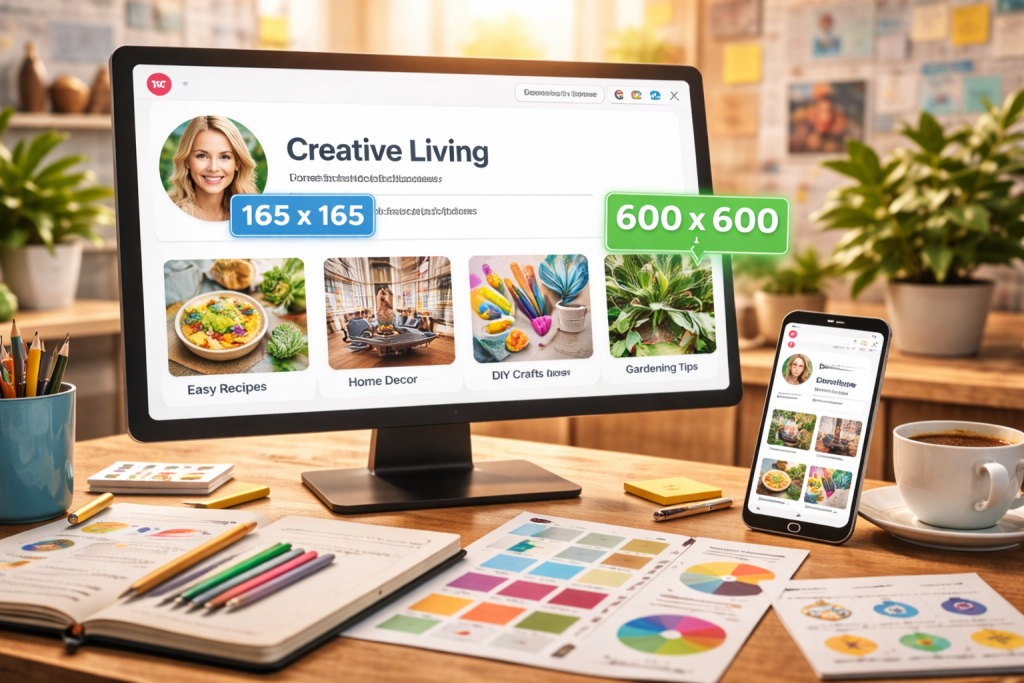
Your profile picture needs to be 165 x 165 pixels. Keep in mind that while you upload a square image, Pinterest will crop it into a circle.
Because of this, you’ll want to make sure your logo or headshot is perfectly centered, so nothing important gets cut off.
A crisp, high-resolution photo here is non-negotiable for looking professional.
Creating Polished and Cohesive Board Covers
Once your profile picture is set, it’s time to tackle your board covers. For these, a 600 x 600 pixel square image works best.
Designing custom covers is a fantastic way to showcase your brand’s personality and aesthetic.
For more ideas on how to organize everything, check out our guide on what Pinterest boards are.
A visually unified profile with matching board covers immediately signals to users that you’re a serious, professional creator.
This small detail can make a huge difference in your follow-back rate by making your profile look curated and appealing.
Thinking beyond just Pinterest, creating a set of social media brand guidelines for consistent visuals can help you build a powerful, recognizable presence across all your platforms.
Common Pinterest Sizing Mistakes to Avoid
Even the most experienced Pinterest creators can slip up on sizing, and those small mistakes can seriously hurt a Pin’s performance.
Knowing what not to do is just as important as knowing the right dimensions, especially if you want your hard work to get noticed.
One of the biggest and most common mistakes is still using the wrong aspect ratio for standard Pins. As of 2025, you should really steer clear of square (1:1) images for your organic content.
Pinterest has been very clear about this—their own data shows that vertical Pins with the ideal 2:3 aspect ratio get a whopping 20–30% more impressions and saves than their square counterparts.
With over 80% of Pinterest traffic coming from mobile, that vertical real estate is just too valuable to give up. For more on this, Tailwind’s blog offers some great insights into Pinterest sizing trends.
Pin Sizing Errors and Quick Fixes
Another classic blunder is uploading images that are too small or low-resolution. Remember, Pinterest compresses every single image you upload.
If you start with a fuzzy or pixelated file, it’s only going to look worse once it’s live in the feed.
Here are a few key mistakes to watch out for:
- Mistake 1: Using Square Images: Stay away from sizes like 1000 x 1000 pixels for your regular Pins. They just don’t stand out on a mobile screen and can get buried by the algorithm.
- Mistake 2: Creating Overly Long “Giraffe” Pins: Anything longer than a 1:2.1 aspect ratio (like 1000 x 2100 pixels) is likely to get cut off in the feed. This means your carefully crafted call-to-action or headline could be completely hidden.
- Mistake 3: Uploading Low-Resolution Files: Never upload an image that’s smaller than the recommended minimums. Always start with the highest quality file you have to counteract the effects of compression. If you need some pointers, check out our guide on how to optimize images for the web.
Lock In the Right Pinterest Picture Size Then Make Every Pin Click-Worthy
This size guide gives you the exact dimensions you need for Standard Pins, Idea Pins, video, carousels, and more—so your designs look polished and don’t get awkwardly cropped in the feed.
But here’s the part most creators miss: perfect sizing is only step one.
Once your Pin fits the platform, you still need the details that actually drive saves and outbound clicks—like strong text overlays, clean branding placement, keyword-ready descriptions, and a clear call-to-action that’s easy to read on mobile.
That’s why we created a simple, repeatable tool you can use every time you design: our free Pin Optimization Checklist. It walks you through the exact “pre-publish” checks to make sure your Pin isn’t just the right size—it’s built to perform.
You’ll be able to spot quick fixes fast (before you schedule a week’s worth of content), create more consistent designs, and build a workflow you can repeat without second-guessing every Pin.
If you’re ready to turn this size guide into a weekly system that makes your Pins look better and work harder, start here:
Pin Size FAQs: Your Most Common Questions Answered
Getting the hang of Pinterest’s image sizes can feel like a moving target, but don’t worry. I’ve been there. Let’s clear up the confusion with direct answers to the questions I hear most often from creators.
Getting these dimensions right is one of the easiest ways to make your content look professional and perform better from the get-go.
What’s the absolute best size for a Pinterest Pin?
If you remember only one thing, make it this: 1000 x 1500 pixels. This is the sweet spot.
This size nails the 2:3 aspect ratio that Pinterest’s algorithm is built to favor. Since most people are scrolling on their phones, this vertical format fills the screen perfectly, making your Pin impossible to ignore.
Using 1000 x 1500 px ensures your image shows up in full, with no weird cropping, giving you the best shot at grabbing a user’s attention.
Can I still get away with using square images?
Technically, yes, you can upload a square (1:1) image. But for your standard, organic Pins? I’d strongly advise against it. Pinterest’s feed is a vertical world, and square Pins just don’t get the same real estate or algorithmic love. They tend to get lost in the scroll.
That said, square images still have their place. They work well for Carousel Pins and are a standard option for certain ad formats, where the placement is a bit different.
How do I stop Pinterest from making my images look blurry?
This is a huge one. Pinterest compresses every image you upload to keep the platform snappy, which can sometimes ruin a beautiful design. The key is to give their system the best possible file to work with.
Here’s how to minimize quality loss:
- Always start with a high-resolution image. Your best bet is to create your design at the recommended 1000 x 1500 pixels or even larger, as long as you maintain the 2:3 ratio.
- Export your final image as a high-quality PNG file. I’ve found PNGs often retain their sharpness better than JPEGs after Pinterest’s compression.
- Whatever you do, don’t upload a tiny image. If you give Pinterest something small, it will stretch it to fit, resulting in a blurry, pixelated mess that just looks unprofessional.