
Your Pinterest cover photo is that big, beautiful banner at the top of your profile.
It’s the first thing people see, so you want to make a good impression.
The officially recommended Pinterest cover photo size is 800 x 450 pixels, which works out to a clean 16:9 aspect ratio.
Nailing these dimensions is key.
It ensures your banner looks sharp and professional across all devices, without any weird cropping cutting off important parts of your design.
Understanding the Cover Photo Specs
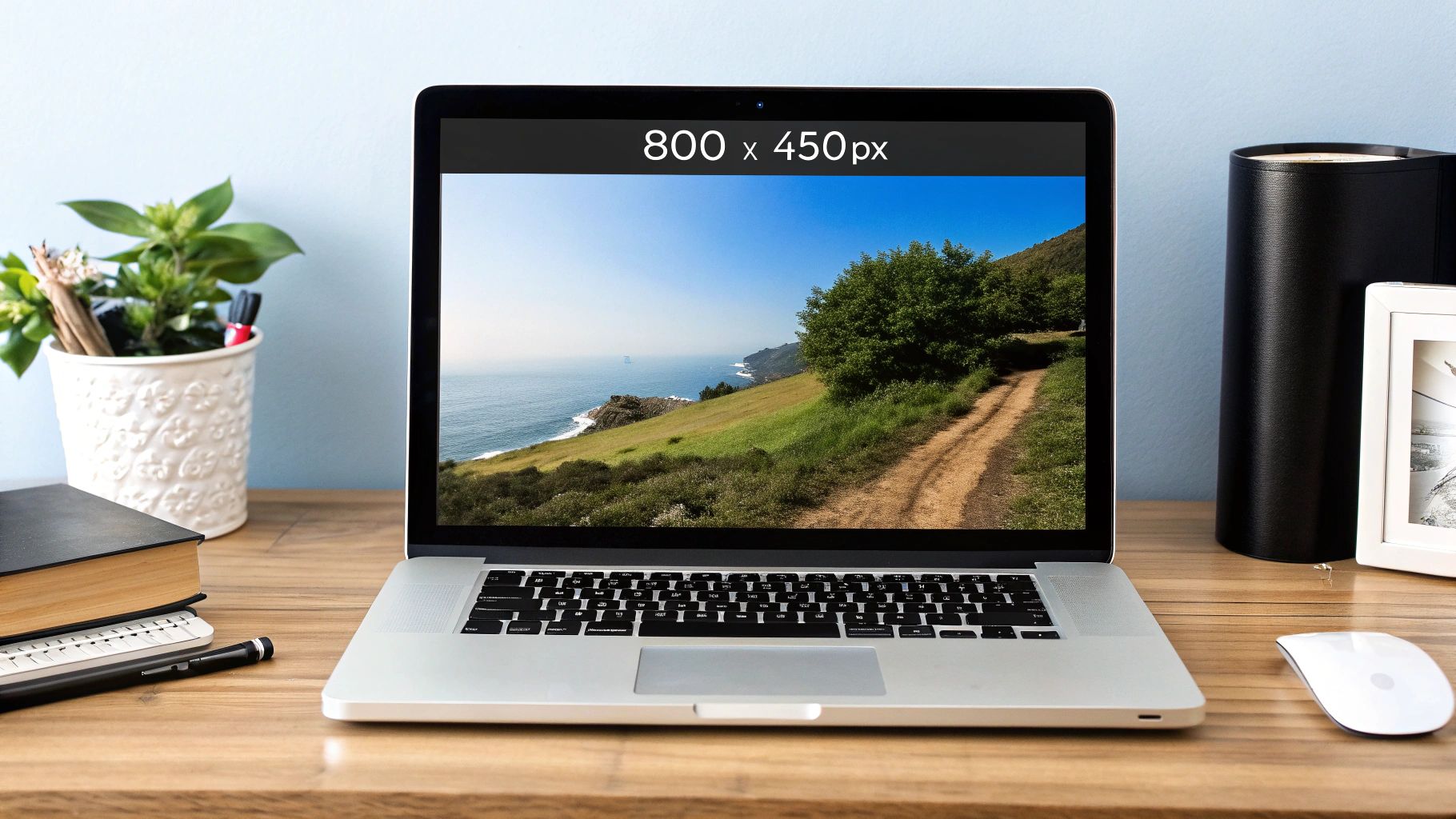
Think of your cover photo as the billboard for your brand on Pinterest. While the platform is famous for its vertical Pins, this one spot is a landscape-oriented header.
It’s your chance to welcome visitors and give them a taste of what your profile is all about.
Getting the technical details right is non-negotiable for a polished look.
To make it easy, I’ve put together all the essential specs in a quick-reference table.
Pinterest Cover Photo Technical Specifications
Here’s a simple breakdown of everything you need to know to get your cover photo looking perfect on the first try.
| Specification | Requirement | Notes |
|---|---|---|
| Recommended Dimensions | 800 x 450 pixels | This is the sweet spot for a crisp, clear image. |
| Minimum Dimensions | 800 x 450 pixels | Pinterest enforces this minimum, so you can’t go smaller. |
| Aspect Ratio | 16:9 | Sticking to this ratio keeps your image from stretching or getting cut off. |
| Max File Size | 10 MB | Helps keep your profile page loading fast for visitors. |
| File Types | JPG, PNG | Stick with these standard, web-friendly formats for the best results. |
Following these guidelines is the best way to avoid common issues like pixelation or awkward framing.
If you’re looking for more details on other visuals for the platform, it’s worth checking out the complete guide to Pinterest image sizes and best practices.
Why Your Cover Photo Matters
Think of your Pinterest cover photo as the welcome mat to your brand’s digital storefront. It’s so much more than a pretty banner; it’s a powerful, visual handshake that sets the entire tone for your profile.
While your Pins are vertical and your profile picture is a small circle, this wide, panoramic space is a unique opportunity to make a big first impression.
This is the very first thing people see when they land on your profile. Get it right, and you instantly tell them who you are and what you’re all about.
A thoughtfully designed cover photo can elevate your profile from a random collection of Pins into a cohesive, must-follow destination.
It’s your chance to communicate your brand’s core message, feature your best products, or signal your niche before a visitor even thinks about scrolling down.
Strategic Branding Opportunities
For any business on Pinterest, this visual real estate is pure gold. It gives you a canvas to:
- Showcase Products: Use a stunning lifestyle photo that puts your best-selling items in the spotlight.
- Communicate Your Value: Add a simple text overlay with your mission statement or what makes you unique.
- Build an Aesthetic: Double down on your brand’s identity by using consistent colors, fonts, and imagery that match your other marketing.
A well-crafted cover photo does the heavy lifting for you, quickly answering a visitor’s first question: “Is this for me?”
Nailing your cover photo is a crucial step, especially right after you figure out how to create a Pinterest business account.
By getting the Pinterest cover photo size and design just right, you build a professional, polished look that turns casual browsers into loyal followers.
Getting the Dimensions and Aspect Ratio Just Right
There’s a good reason why Pinterest recommends a cover photo size of 800 x 450 pixels. It’s all about making sure your image looks fantastic on any screen, from a wide desktop monitor to a vertical smartphone.
This size perfectly matches the standard widescreen 16:9 aspect ratio. Following this guideline means your photo won’t get stretched, squashed, or awkwardly cropped. It’s the simplest way to guarantee a sharp, professional look.
If you try to upload an image with a different shape, like a square photo, Pinterest will force it into that 16:9 space by cropping it.
This usually means losing important parts of your image from the top and bottom, which can completely ruin the composition you worked so hard on.
A Quick Look at Sizing History
Pinterest’s image guidelines have changed over the years, but the cover photo dimensions have been surprisingly stable.
While the ideal size for a standard Pin has shifted (the platform currently favors a 2:3 ratio for best performance in the feed), the cover photo has stuck to the 800 x 450 pixel standard for quite some time now.
Pro Tip: Think of your cover photo like a widescreen TV or a YouTube video thumbnail. Both use that same 16:9 aspect ratio, which helps visualize how your image will be framed.
Ultimately, getting the Pinterest cover photo size right is one of those small details that makes a big difference.
For a full breakdown of image sizes across the platform, be sure to check out our complete guide on Pinterest image dimensions.
How to Create and Upload Your Cover Photo
Putting together the perfect Pinterest cover photo is pretty simple once you know the steps and have the right tools.
You can jump into a design platform like Canva, which is great because it often has ready-to-go templates, or you can manually create a canvas in a program like Photoshop using the recommended 800 x 450 pixels.
Before you even start dragging and dropping elements, you’ll want to have your creative toolkit sorted.
If you’re looking for the right software for the job, you can discover top photo editing applications for Mac that match your skill level and needs.
Using a proper editor from the get-go makes resizing images and adding your brand elements a much smoother process.
I find it helps to break down the process into a few key stages, which this infographic lays out nicely.
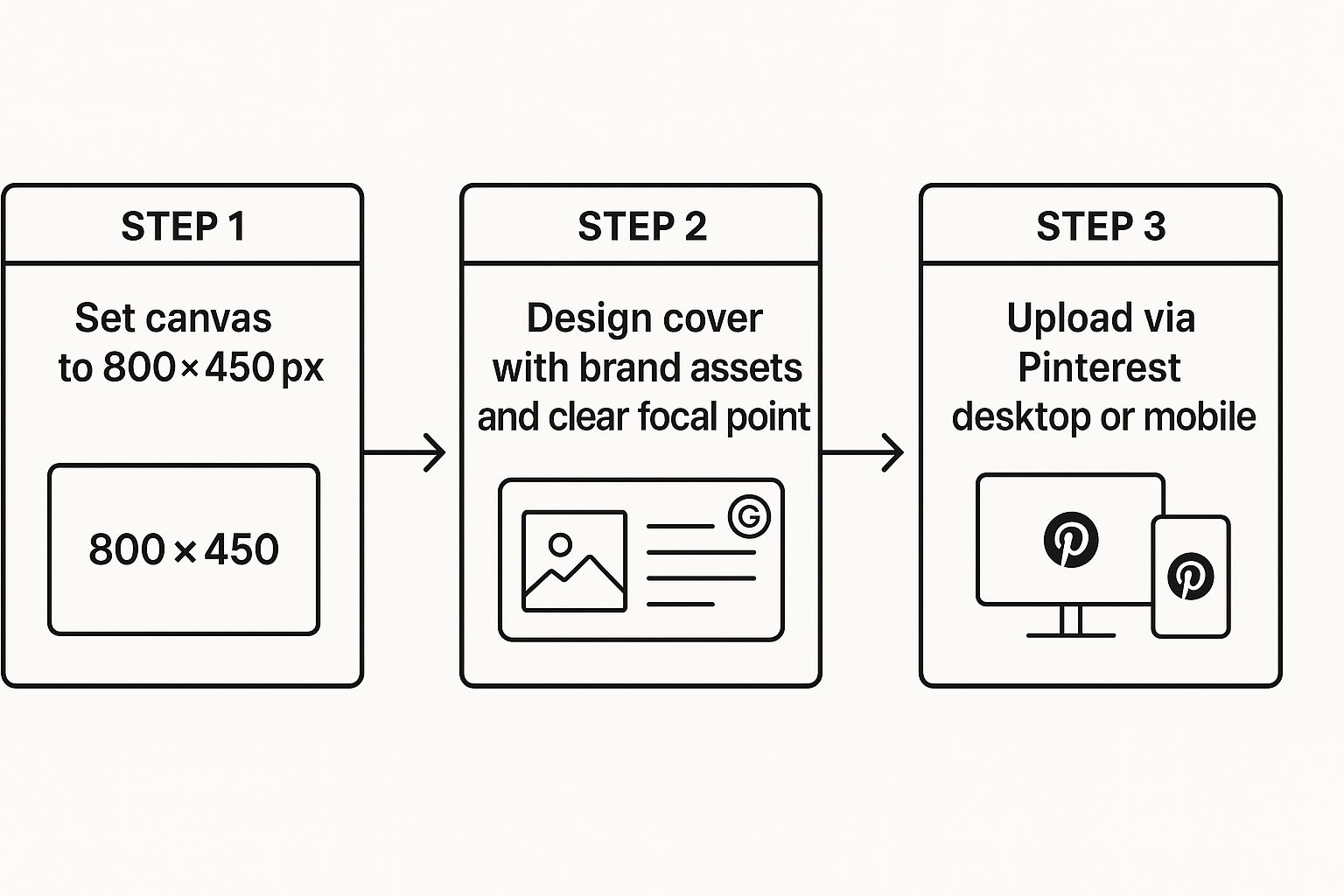
Stick to this visual guide, and you can be confident your design meets all the technical specs for a clean, hassle-free upload.
Step-by-Step Upload Guide
Getting your new cover photo onto your profile only takes a minute, whether you’re on a computer or your phone. Just follow these quick steps to give your profile a fresh look.
- Head over to your main Pinterest profile page.
- Look for the pencil icon or “Edit profile” button, which you’ll typically find right next to your profile picture. Click it.
- Find the cover photo section and click the “Change” button or the little camera icon.
- Choose your new 800 x 450 pixel image from your computer or phone’s files.
- Pinterest will give you a chance to drag and reposition the image to get the framing just right. Once you’re happy, hit “Save.”
If you hit a snag—say, the image won’t save—the first thing to check is the file itself. Make sure its size is under 10 MB and that it’s a JPG or PNG file.
Sometimes, it’s just a glitch and a simple page refresh does the trick. For a more in-depth walkthrough on adding images, our guide on how to upload pictures to Pinterest has you covered.
Best Practices for a High-Impact Cover Photo
Nailing the right Pinterest cover photo size is just the starting point. What really makes people stop and take notice is a high-impact design that tells your brand’s story in a single glance.
Think of it as a visual handshake—it should immediately let visitors know what you’re all about.
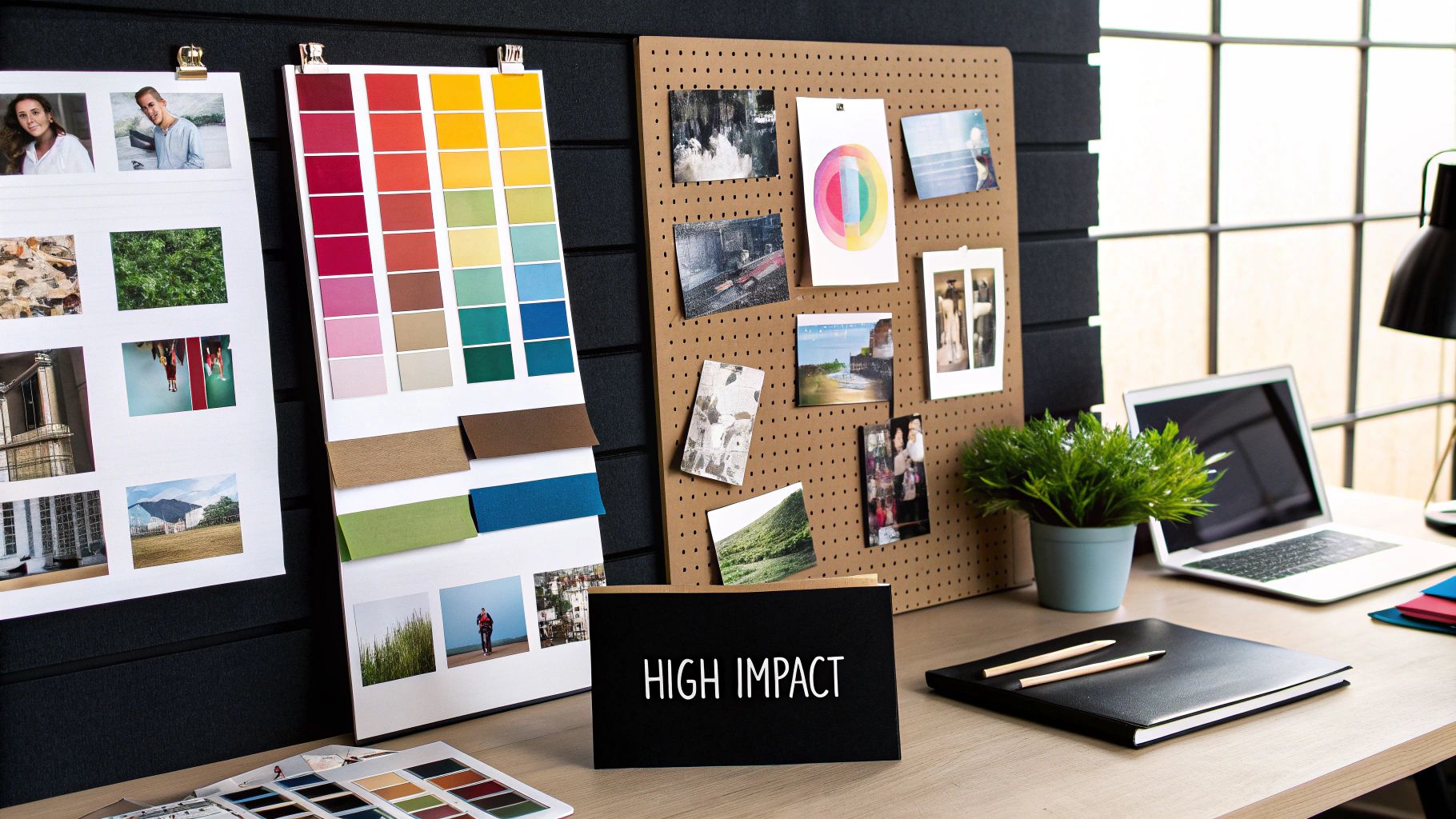
Always, and I mean always, start with a high-resolution image. Nothing screams unprofessional like a blurry or pixelated header right at the top of your profile.
A crisp, clear photo sets a professional tone from the get-go.
Maintain Consistent Branding
Your cover photo is some of the most valuable branding real estate you have on Pinterest. It needs to feel like a seamless part of your brand, connecting visually with your website and other social profiles.
- Use Brand Colors and Fonts: Stick to your established color palette and typography. This isn’t the place to experiment; it’s where you build instant brand recognition.
- Showcase Your Niche: Your image should be a dead giveaway about what you do. If you’re a baker, show off your most beautiful cakes. If you’re a travel blogger, use that breathtaking landscape shot you know stops the scroll.
This kind of consistency is what builds trust and makes your brand memorable long after someone has left your profile.
Design with a Clear Focal Point
Don’t forget that your circular profile picture is going to sit right on top of this image, usually smack in the center. You have to design around it, otherwise, your key message could get completely lost.
A simple, uncluttered design almost always works best here. You’ll want to place your most important visuals—like a key product or a line of text—slightly off-center or toward the edges to guarantee they stay visible.
This is a lot like the strategy behind creating a great thumbnail. If you want to dive deeper, it’s worth learning how to optimize thumbnails for maximum impact.
It’s the same principle: ensuring your core message is clear, no matter the context.
When you blend the right technical specs with thoughtful design, your cover photo stops being just a background image. It becomes a powerful magnet for attracting and engaging the right audience.
Common Cover Photo Mistakes You Can Avoid

Getting your Pinterest cover photo size right is a great start, but a few common slip-ups can still spoil that all-important first impression.
Knowing what to watch out for is half the battle in creating a profile that looks polished and professional right from the get-go.
One of the biggest culprits is a low-resolution image. If you upload something smaller than the recommended 800 x 450 pixels, Pinterest has to stretch it to fill the space. The result?
A blurry, pixelated header that just doesn’t look good. Always, always start with a sharp, high-quality photo.
Another thing people often forget is how the cover photo interacts with the rest of your profile.
Designing Around Profile Elements
Remember, your circular profile picture is plonked right in the middle of your cover photo. Your name, bio, and follower count also sit on top of it towards the bottom.
It’s easy to create a design that looks great on its own, only to have the most important parts hidden.
- Mistake: Putting your company logo, a key product, or important text right in the center where it gets covered up.
- Solution: Frame your shot with the main subject slightly off-center or positioned higher up. This keeps the focus clear and unobstructed.
Key Takeaway: You absolutely have to preview your cover photo on both desktop and mobile. The way things are cropped and where the overlays sit can change between devices.
A quick check on both will save you a headache later.
Finally, try not to overcomplicate things. An image with too much text or a really busy background can feel chaotic.
A clean, simple photo that fits your brand’s style will do a much better job of telling people who you are and what you’re about.
Make Your Pinterest Profile Look “Pro” in One Upload
Generate a banner plan, text overlay options, and layout ideas in minutes.
Your cover photo shouldn’t take an hour of guessing (and re-uploading).
Use our free Pinterest GPTs to create a clean banner concept that fits 800×450 (16:9), stays readable on mobile, and matches your brand style.
You’ll get:
- 5 headline/tagline ideas for your banner
- A “safe placement” layout suggestion (so text doesn’t get covered)
- A quick design brief you can paste into Canva
Frequently Asked Questions
Still have a few questions about getting your Pinterest cover photo just right? Let’s clear up some of the most common things people ask.
Can I Use a Video for My Pinterest Cover?
Absolutely. If you have a Pinterest business account, you can set a video as your cover. Just make sure it fits a 16:9 aspect ratio and meets the usual video specs for the platform. It’s a fantastic way to grab attention the moment someone lands on your profile.
Why Does My Pinterest Cover Look Blurry?
Nine times out of ten, a blurry cover photo happens because the uploaded image was too small. If your image is smaller than the recommended 800 x 450 pixels, Pinterest has to stretch it to fill the space, which causes pixelation and loss of quality.
To fix this, always start with a high-resolution image. Aim for the recommended size or even slightly larger to keep it looking sharp and professional.
How Does the Cover Photo Look on Mobile?
This is a great question because the view definitely changes on smaller screens. On a phone, your profile picture and bio text will overlap more of the cover, particularly around the bottom and center.
My advice? Keep the most important parts of your image away from these “safe zones.” Think of the top and outer edges as your prime real estate to ensure your key visuals don’t get hidden.
Do I Really Need a Cover Photo?
Technically, no, it’s not required. But should you have one? I’d say yes, especially if you’re a brand, creator, or business.
Think of it as the welcome mat to your Pinterest profile. It’s a huge branding opportunity that ties everything together, makes your profile look polished, and helps you make a killer first impression.
It’s a small detail that makes a big difference.