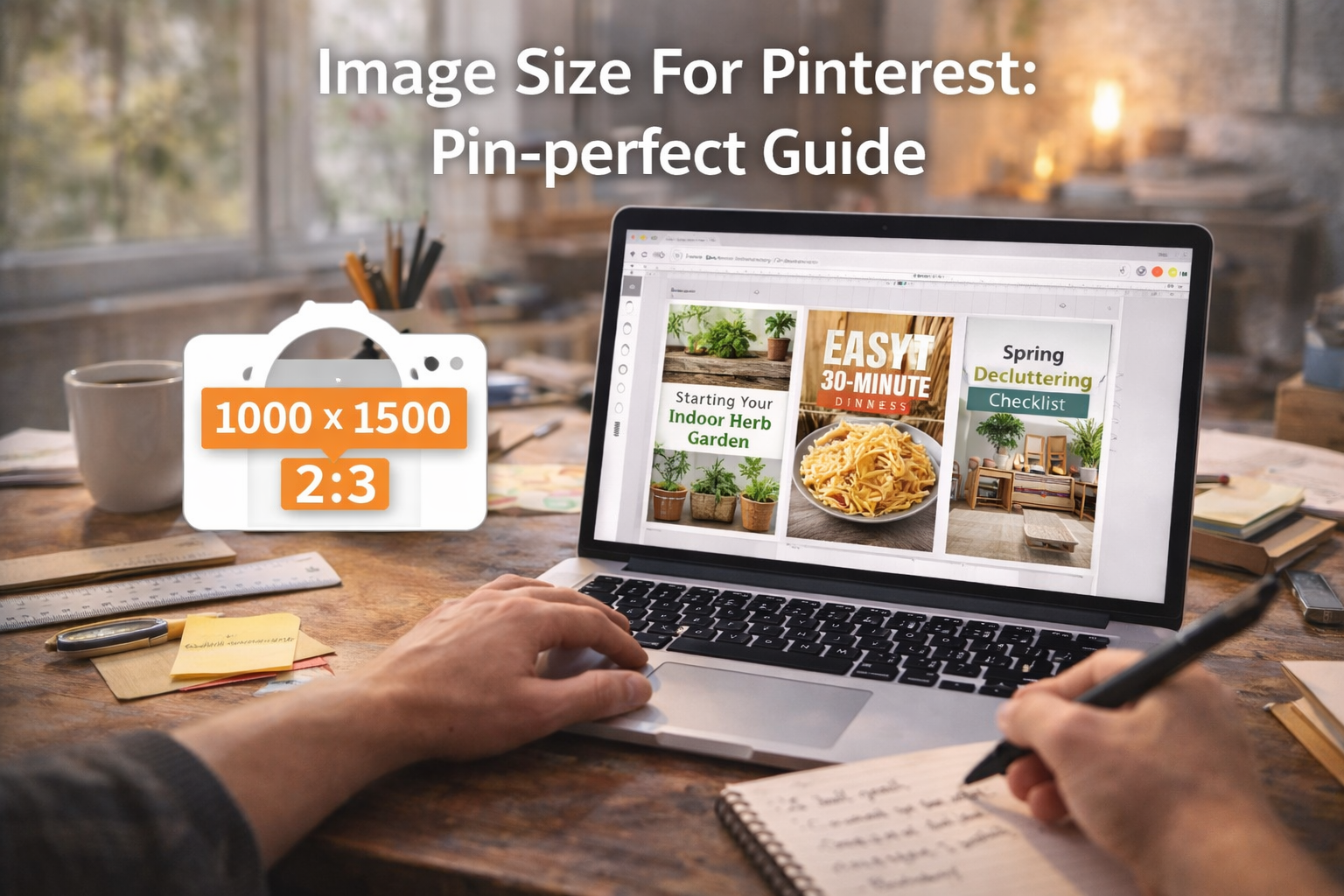
Ever wonder why some Pins just pop on your screen, making you stop mid-scroll, while others are easy to fly right by?
It often comes down to one simple thing: size. The sweet spot for a standard image size for Pinterest is 1000 x 1500 pixels, which nails the platform’s preferred 2:3 aspect ratio.
Getting your dimensions right from the start is more than just a technical detail—it’s about making your content look polished and ensuring it performs at its best.
Why Pinterest Image Size Is a Game Changer
Picture the Pinterest feed as a fast-moving river of ideas. A correctly sized vertical Pin is like a perfectly crafted boat, gliding smoothly and catching everyone’s eye.
A poorly sized one? It’s like a clumsy raft that gets stuck, ignored, or even sinks out of sight. This isn’t just about looking good; it’s a strategic move that directly impacts your Pin’s performance.
Pinterest’s algorithm is built to reward content that creates a great user experience.
That means images fitting the optimal 2:3 aspect ratio are naturally favored and shown to more people, boosting your organic reach.
This isn’t just a guess. With over 240 billion Pins saved, Pinterest has a mountain of data showing that tall, vertical images are what users engage with most.
You can dive deeper into user trends on Oberlo.com.
The Cost of Getting It Wrong
Using the wrong dimensions can quietly sabotage your entire Pinterest strategy.
An image that’s too wide (horizontal) or square gets awkwardly cropped in the mobile feed, which is where most users are.
This can chop off your headline, hide your logo, or even cut your product out of the frame. The result is a confusing, unprofessional look that leads to lower engagement, fewer saves, and less traffic.
A well-sized Pin is a sign of quality. It instantly tells users you know the platform and took the time to create something specifically for them. That little detail builds trust and makes them far more likely to click.
Your First Step to Pinterest Success
Think of it this way: mastering the ideal image size for Pinterest is the foundation of your entire strategy on the platform.
It’s the first and most important step to making sure your message is seen clearly and professionally.
By prioritizing the right dimensions, you’re setting every single Pin up for maximum visibility and impact from the moment you hit “publish.”
This is a core part of our recommended content creation best practices for any visual-first platform.
Taking a few extra seconds to get the size right is one of the easiest, highest-return activities you can do to improve your Pinterest results.
The Gold Standard: Nailing Your Standard Pin Size
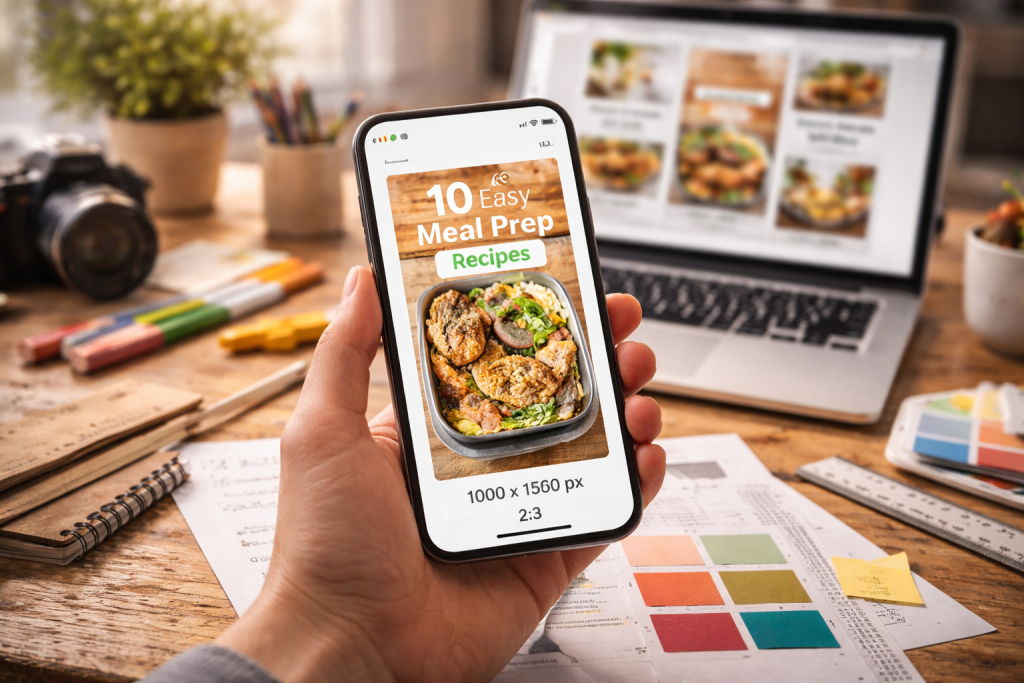
If you’re wondering what the best image size for Pinterest is, let’s cut right to the chase for standard, static Pins. The one rule you need to remember is the 2:3 aspect ratio.
Think of it as the native language of the Pinterest feed. It’s the tall, vertical format that the platform is built to showcase, ensuring your content looks like it belongs there—professional, seamless, and perfectly optimized for scrolling eyes.
To hit that sweet spot, your go-to dimension should be 1000 x 1500 pixels. This isn’t just a random number; it’s the high-resolution key to making your images look sharp and vibrant on any screen, from a big desktop monitor to a tiny smartphone.
You might stumble upon older articles suggesting 600 x 900 pixels, but trust me, sizing up to 1000 x 1500 pixels is the smarter play. It future-proofs your content and gives your audience a much better visual experience.
Why 1000 x 1500 Pixels Is a Game-Changer
This specific size isn’t a fluke. Pinterest has tweaked its recommendations over the years based on how people actually use the platform.
Around 2018, they started pushing the 2:3 ratio hard because the data was clear: taller images simply perform better. They grab more attention, stop the scroll, and earn more engagement.
Sticking to this gold standard gives you a few major advantages:
- Maximum Screen Real Estate: A 2:3 Pin takes up more vertical space in the feed, making it impossible to ignore.
- No Awkward Cropping: Your entire design—from your catchy headline to your logo—is displayed exactly as you intended. Nothing gets cut off.
- Algorithm-Friendly: You’re feeding the Pinterest algorithm exactly what it wants, which can help your Pins get shown to more people.
You can dig into the history of these changes in this image size analysis from Tailwind.
Pinterest even shows us exactly what they mean. This official example highlights how a standard Pin should look in the feed.
See how that 2:3 Pin commands the space? It’s designed to stand out, filling the vertical grid and drawing your attention.
Standard Pinterest Pin Size Quick Reference
To make it even easier, I’ve put together this quick-reference table. Keep it handy to ensure every standard Pin you create is set up for success.
| Attribute | Recommendation | Why It Matters |
|---|---|---|
| Aspect Ratio | 2:3 | This is the optimal vertical proportion that Pinterest’s layout is designed for, maximizing visibility. |
| Pixel Dimensions | 1000 x 1500 px | This ensures a high-resolution image that looks sharp and professional on all screen sizes. |
| Minimum Size | 600 x 900 px | Use this only if absolutely necessary; larger is always better for quality and future-proofing. |
By consistently using these dimensions, you’re giving your standard Pins the best possible shot at capturing attention and helping you hit your goals.
Practical Tips for Perfect Standard Pins
Making Pins that fit these specs is pretty simple once you get the hang of it. Whether you’re a design pro or just getting started, the most important thing is to start correctly.
Key Takeaway: Always, always start your design with a 1000 x 1500 pixel canvas. Trying to force a square or horizontal image into a vertical format just doesn’t work—it leads to weird compositions, stretched images, and a serious drop in quality.
Mastering Dimensions for All Pin Formats

Pinterest is so much more than just static images these days. To really stand out, you have to think like a versatile artist, using different canvases for different messages.
Getting the unique image size for Pinterest right across formats like Video Pins, Idea Pins, and Carousels is a total game-changer for your strategy.
Each format has its own playbook and ideal dimensions, all designed to give the user the best possible experience.
For instance, a Video Pin has to grab attention with motion right away, while a Carousel tells a story one swipe at a time.
If you ignore these specific rules, it’s like trying to fit a square peg in a round hole—it just won’t look right or perform well.
Video Pins Dimensions for Maximum Impact
Video is a powerhouse on Pinterest, perfect for tutorials, product demos, or just telling your brand’s story. When it comes to Video Pins, think vertical.
While you can upload square videos (1:1), the full-screen vertical format (9:16) is way more immersive on phones, which is where most people are scrolling.
You’ll want to aim for a resolution of 1080 x 1920 pixels. This ensures your video is sharp and crystal clear, filling the viewer’s entire screen without any distracting borders.
- Recommended Ratio: 9:16 (full-screen vertical)
- Optimal Size: 1080 x 1920 pixels
- Also Supported: 1:1 (square), 2:3, and 4:5 ratios are accepted, but they just don’t have the same punch.
- File Size: Keep it under 2GB.
- Video Length: The sweet spot for performance is 15-30 seconds, though you can upload videos as short as 4 seconds or as long as 15 minutes.
The Non-Negotiable Idea Pin Size
Idea Pins are Pinterest’s take on the “stories” format, built for creating multi-page, engaging narratives. For this format, the 9:16 aspect ratio isn’t just a suggestion; it’s a hard rule.
This full-screen vertical layout is the only option available, which helps create that seamless, tap-through experience we’re all used to.
Every single page of your Idea Pin, whether it’s an image or a video, must be 1080 x 1920 pixels. Keeping this consistent is the secret to making your story feel cohesive and professionally put together from the first slide to the last.
This infographic breaks down the essential elements of the ideal image size for Pinterest, really highlighting that 2:3 ratio for standard pins.
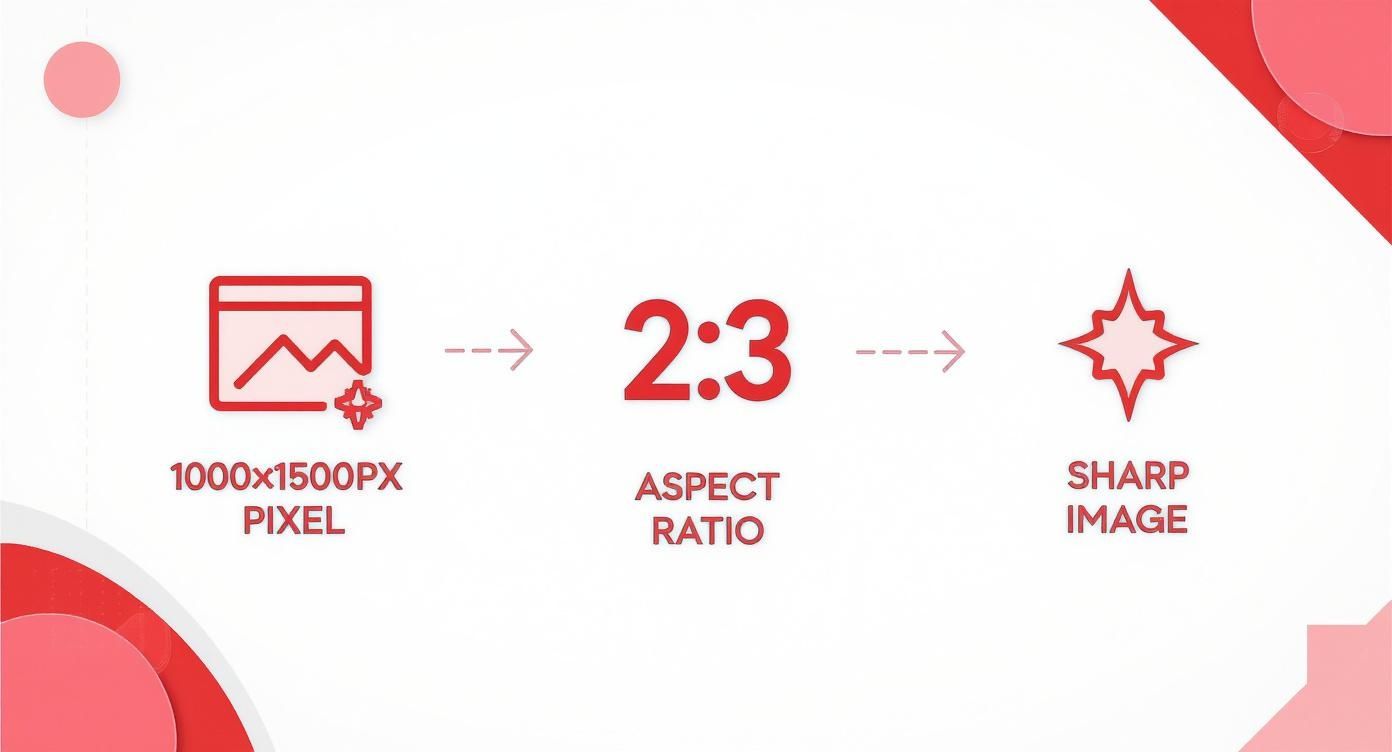
As you can see, combining the right aspect ratio with high-resolution pixels is what gives you a sharp, high-quality Pin that gets the best results.
Structuring Your Carousel and Promoted Pins
Carousels are fantastic because they let you feature multiple images or videos in a single Pin. They’re perfect for step-by-step guides, showing off different product angles, or telling a longer visual story.
Each “card” in a Carousel can be either a 1:1 aspect ratio (1000 x 1000 pixels) or a 2:3 aspect ratio (1000 x 1500 pixels).
The most important thing here is consistency—don’t mix and match different ratios within the same Carousel.
The same general rules apply to Promoted Pins (your ads). The 2:3 aspect ratio (1000 x 1500 pixels) is what you should aim for with standard ad formats, as it simply gives you the most screen real estate and visibility.
Key Insight: Choosing the right dimensions isn’t just about following technical rules; it’s a creative decision. The format you pick should match the story you’re trying to tell.
A quick tip in an Idea Pin has very different needs than a detailed product gallery in a Carousel.
If you want to create pins that meet all these specifications without the headache, you might want to look into a best Pinterest post generator.
These tools can automate the sizing and formatting for you, saving a ton of time and making sure every Pin is perfectly optimized, no matter the format.
How Aspect Ratios Drive Performance
So, why is Pinterest so insistent on vertical images? It all boils down to one simple concept: screen real estate.
Once this clicks, you’ll stop just uploading random images and start strategically designing Pins that own the feed.
Think of the Pinterest feed as a bustling, vertical-scrolling art gallery. Every Pin is fighting for a user’s fleeting attention.
A tall Pin with the right 2:3 aspect ratio is like a huge, stunning canvas that dominates the wall. It naturally draws the eye and makes people want to stop and take a closer look.
Now, picture a wide, horizontal image (like a 16:9 ratio) in that same gallery. It would look like a tiny, misplaced postcard.
On a mobile phone, this effect is magnified tenfold. It gets lost in the visual noise and is easily scrolled past without a second thought.
The Power of Vertical Space
This isn’t just about aesthetics; it’s a hard-wired performance driver. Pinterest is built from the ground up to deliver a beautiful, seamless visual experience, which means its algorithm heavily favors content that fits the vertical layout.
If you upload an image that breaks this rule, Pinterest will often awkwardly crop or truncate it.
Your call-to-action might get sliced off, your product shot gets butchered, and your click-through rates plummet. It’s a simple way to sabotage your own work.
Key Takeaway: The entire game on Pinterest is to stop the scroll. A vertical Pin maximizes your visual footprint, making your content more impactful and harder to ignore. More impact directly translates to more engagement.
Using that bigger canvas is essential for powerful visual storytelling techniques, giving you more room to hook the viewer and guide their eye through your design.
Data-Backed Dominance of the 2:3 Ratio
The numbers don’t lie. According to Pinterest’s own data, Pins that stick to the recommended 2:3 aspect ratio (like 1000 x 1500 pixels) can see up to 30% more engagement than those with oddball ratios.
Why such a big jump? Because the platform is literally designed to showcase these Pins perfectly. They appear in the feed exactly as you created them, with no weird cropping or awkward empty space.
When you fully embrace the vertical format, you’re not just following some arbitrary rulebook. You’re aligning your entire strategy with how people actually use and experience Pinterest.
This simple shift is the key to making your Pins look professional, grab more eyeballs, and ultimately get the results you’re after.
Essential Technical Tips for High-Quality Pins
Nailing the perfect dimensions is a great start, but the real magic is in the technical details.
These are the small, behind-the-scenes adjustments that take a Pin from good to great, making sure it looks sharp, loads fast, and actually gets seen.
Think of it like baking a cake. The right image size for Pinterest is your recipe, but the quality of your ingredients—like the file type and compression—is what makes the final product delicious.
Get these details right, and your content will land perfectly every time.
Choose the Right File Format
Not all image files are built the same. The format you save your Pin as directly affects how it looks on different screens, and making the right call is key to keeping things clear and punchy.
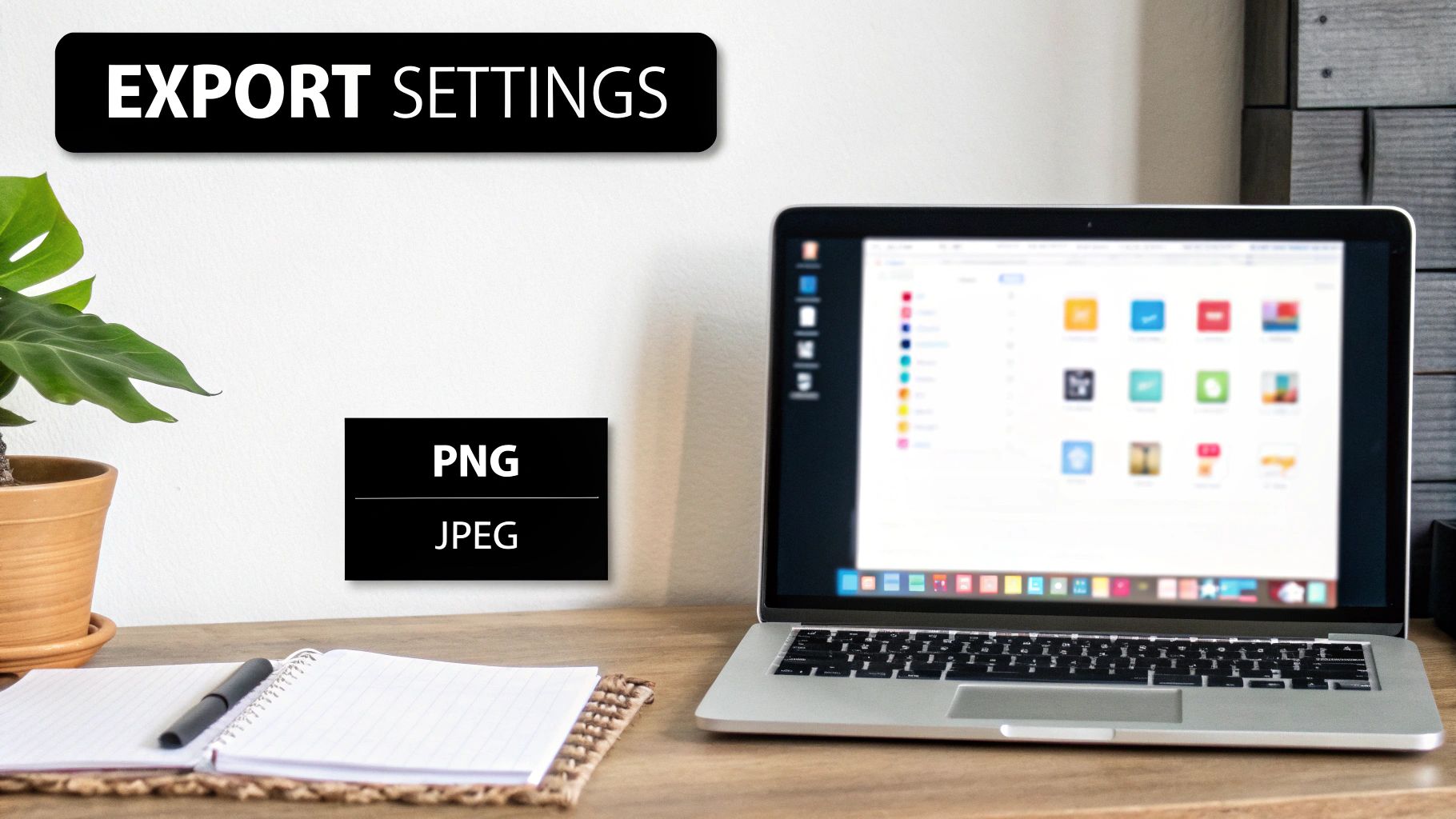
- Use PNG for Graphics and Text: If your Pin has text overlays, a logo, or any kind of sharp graphic design, PNG is the way to go. It keeps lines super crisp and handles transparent backgrounds beautifully, avoiding those fuzzy edges you might see with other formats.
- Use JPEG for Photographs: When your Pin is all about a photograph, JPEG (or JPG) is your best friend. It’s fantastic at managing all the rich colors and fine details in a photo, giving you top-notch quality without a huge file size.
Balance File Size and Quality
A massive, high-resolution file might look incredible on your computer, but if it takes forever to load on a phone, people will just scroll on by.
Pinterest officially says to keep your Pins under 20 MB, but honestly, you should aim for much smaller. A file size around 1-3 MB is the sweet spot for a speedy mobile experience.
The goal is to find that perfect balance between a crystal-clear image and a lightweight file.
Smart compression is your secret weapon here, letting you shrink the file size without sacrificing much visual quality. After all, a fast Pin is a user-friendly Pin.
For anyone looking to make this process a whole lot easier, checking out the best AI tools for content creators can be a game-changer. These tools can help optimize your images in a flash.
Optimize Beyond the Image Itself
A few other technical tweaks can make a surprisingly big difference in how your Pins perform. These little details improve the user experience and help your content get discovered by Pinterest’s search algorithm.
An Actionable Checklist for You:
- Readable Text Overlays: Make sure any text on your Pin is big, bold, and pops against the background. Keep in mind that over 85% of Pinners are on their phones, so your text has to be legible on a small screen.
- SEO-Friendly File Names: Don’t just upload
IMG_1234.jpg. Before you hit upload, rename your file with keywords that describe the content, likehealthy-breakfast-recipe-oatmeal.jpg. This gives Pinterest more clues about what your Pin is about. - Subtle Branding: It’s a great idea to add your logo or website URL, but don’t let it overpower the image. Tuck it away in a corner where it’s visible but not distracting. It’s a simple way to build brand recognition without being pushy.
Paying attention to these technical details ensures every part of your Pin is working for you.
If you’re ready to put all this into practice, our step-by-step guide on https://www.postpaddle.com/blog/how-to-create-pins can walk you through the entire process.
Make Every Pin Look Sharp, Correctly Sized, and Click-Worthy—Every Time
Getting the right Pinterest image size is the foundation, but consistent results come from checking the whole Pin before you publish—dimensions, readability, file format, branding, and mobile-safe layout.
Use our free Pin Optimization Checklist to quickly confirm your Pin is built for the feed (so your text doesn’t get cropped, your design stays clear on mobile, and your content looks instantly professional).
It’s the easiest way to turn this guide into a repeatable workflow—so every Pin you post is set up to perform, not just “look good.”
Got Questions About Pinterest Image Sizes? I’ve Got Answers.
Jumping into Pinterest dimensions can feel a bit like putting a puzzle together. You think you have all the pieces in place, and then another question pops up.
This section is here to be your cheat sheet for those tricky moments, giving you straight-up answers to the most common questions about Pinterest image sizes.
Think of this as your quick reference guide. With these answers in your back pocket, you can build your Pinterest strategy with confidence, knowing every single Pin you create is set up to grab attention and get results.
Let’s tackle the questions that every creator eventually asks.
Are Those Super-Long “Giraffe” Pins Still a Thing?
Ah, the classic question. For a while, those extra-long “giraffe” pins were all the rage, but things have definitely changed.
Today, Pinterest’s algorithm will actually chop off images in the main feed if they’re longer than a 1:2.1 aspect ratio.
What does that mean for you? If your Pin is too long, the most important part—your headline, your call-to-action, your main visual—could be completely hidden.
To make sure people scrolling see your entire design right away, stick to the recommended 2:3 aspect ratio. A Pin sized at 1000 x 1500 pixels makes a powerful first impression without any risk of your hard work getting cut off.
What’s the Best Size for My Pinterest Board Covers?
Your board covers are a massive part of your profile’s first impression. They’re what make your page look clean, cohesive, and professional.
Pinterest always shows board covers as a square, so the perfect size to aim for is 600 x 600 pixels.
When you pick an existing Pin to use as a cover, Pinterest lets you crop it to fit that square format. For a truly polished look, you’ve got two solid options:
- Pick a Pin where the most important part of the image is right in the center, making it a breeze to crop into a square.
- Design a dedicated graphic that’s already 600 x 600 pixels and matches your brand’s style, fonts, and colors.
Which Is More Important: Image Quality or Image Size?
That’s a bit of a trick question, because you absolutely need both. They’re two sides of the same coin. Think of them as a team—one can’t succeed without the other.
The right image size ensures your Pin shows up correctly without weird cropping, but bad quality will sink your engagement before it even starts.
A stunning, high-res image in the wrong size gets cut off, while a perfectly sized but blurry image gets ignored. The winning formula is always a high-quality image formatted to the right dimensions.
How Can I Resize Images Without Making Them Blurry?
The secret to resizing without losing that crisp, sharp look is to start with a high-resolution image and use the right software.
Whatever you do, don’t just stretch a small image to make it bigger—that’s a surefire way to end up with a pixelated mess.
Instead, fire up a design tool like Canva, Adobe Express, or Photoshop. These programs have pre-made Pinterest templates that are already set to the optimal 1000 x 1500 pixels.
Just drop your high-quality photo into the template and let the tool do the heavy lifting. When you export, save it as a PNG for graphics with text, or a high-quality JPG for photos to keep everything looking sharp.