Ever stumbled upon the perfect article, that one amazing recipe, or a product you just had to have, only to lose it forever in a sea of forgotten browser tabs?
We’ve all been there. Pinning is the modern-day fix—a digital corkboard for everything that catches your eye.
Learning how to pin from a website is your ticket to saving that inspiration directly to your Pinterest boards in just a few clicks.
Why Pinning From Websites Is a Content Superpower
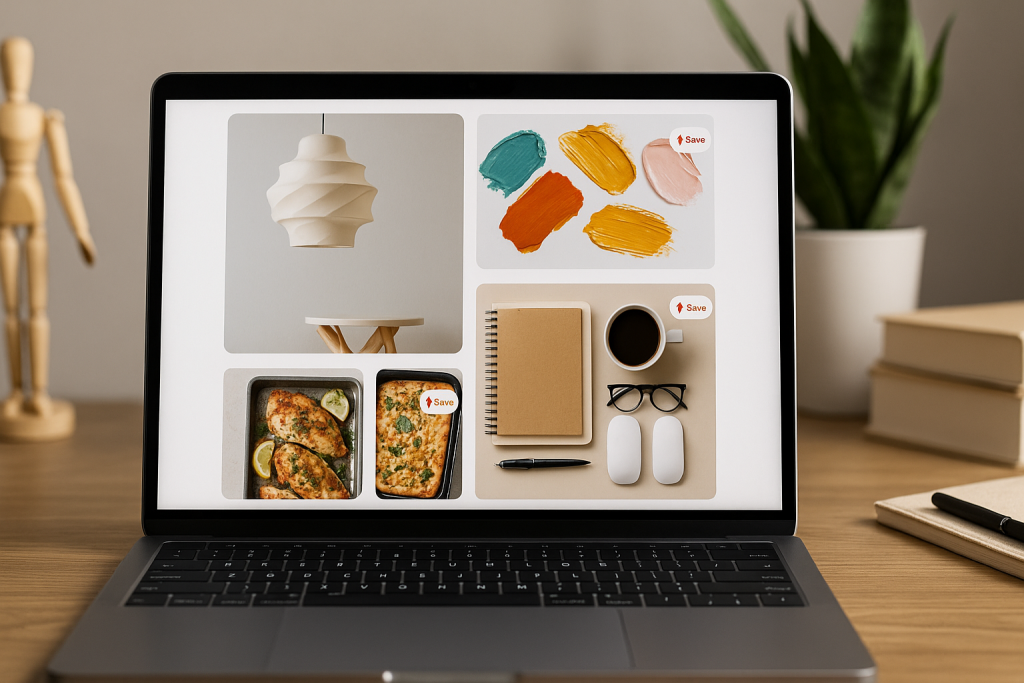
Pinning is so much more than just digital bookmarking. It’s a dynamic way to curate your online world and stumble upon new ideas.
When you save content directly from a website, you’re building a visual library that’s perfectly organized around your interests, projects, and goals.
This simple habit can turn chaotic web browsing into a genuinely productive experience.
Think about how this plays out in real life. You could be:
- Planning a home renovation: Pinning light fixtures from a hardware store’s site, paint swatches from a design blog, and step-by-step DIY tutorials all to one board.
- Organizing your weekly meals: Saving recipes directly from your favorite food blogs onto a “Meal Prep” board for easy access.
- Building a business: Curating insightful industry articles, competitor products, and branding ideas from all over the web.
The Impact of Direct Pinning
This simple action has a huge ripple effect, especially for businesses and creators.
Pinning from websites is a cornerstone of many effective content distribution strategies because it helps great content find the right audience organically.
When someone pins your product or blog post, they aren’t just saving it for themselves—they’re sharing it with their own network.
This user-driven curation is what powers discovery on Pinterest. And the numbers don’t lie: a mind-boggling 1.5 billion Pins are saved every week from external websites.
This habit directly shapes what people buy. An incredible 85% of weekly Pinners say they’ve purchased something based on Pins from brands.
This shows how a single pin can bridge the gap between online inspiration and a real-world purchase.
Ultimately, mastering how to pin from a website is a game-changer. It helps casual users keep their ideas organized and gives businesses a powerful way to drive traffic and connect with customers. It’s the difference between passive browsing and active, meaningful curation.
The Easiest Way to Pin: The Browser Button
When it comes to grabbing inspiration from around the web, nothing beats the official Pinterest browser button. It’s a simple little extension that lives in your browser, but it’s a total game-changer for saving ideas on the fly.
You can forget about copying links or saving images to your desktop first. This tool lets you pin anything you see with just a single click, right from the source.
Let’s say you’re scrolling through a design blog and stumble upon the perfect armchair.
Instead of just bookmarking the page and losing the context later, you can instantly save that specific image.
Just hover over it, click the Pinterest ‘Save’ icon that pops up, and send it straight to your “Dream Home” board. It’s that easy.
This little button makes pinning feel completely seamless and part of your natural browsing experience.
Getting the Button Installed
Setting this up takes less than a minute, seriously. There are no complicated settings to worry about.
You can grab the official extension for whichever browser you use:
- Google Chrome: Find the “Pinterest Save Button” in the Chrome Web Store and click “Add to Chrome.”
- Mozilla Firefox: Head over to the Firefox Browser ADD-ONS page, search for the official Pinterest extension, and hit “Add to Firefox.”
- Microsoft Edge: Just search for the Pinterest button in Microsoft Edge Add-ons and click “Get” to install.
Once it’s installed, you’ll see the familiar Pinterest logo in your browser’s toolbar. That’s it—you’re ready to start pinning.
My Two Cents: Don’t just save the image and move on. Always take a few extra seconds to write a good description packed with keywords. It makes your Pin way more searchable for others and, more importantly, reminds you why you saved it in the first place.
Pinning in Action
The real magic of the browser button is how it handles pages with lots of images. Click the Pinterest icon in your toolbar, and it will pull up every single pinnable image from that page, all laid out in a neat grid.
This gives you total control. You can pick the exact product shot you love, an interesting infographic from an article, or a specific photo from a recipe tutorial.
After you select your image, a window pops up where you can pick the right board and write your description without ever leaving the page. It’s an incredibly efficient way to curate content.
For a deeper dive into creating Pins that really stand out, check out our complete guide on https://www.postpaddle.com/blog/how-to-pin-to-pinterest. Mastering this simple browser tool is the first step to building an amazing collection of ideas.
Pinning Manually Without a Browser Extension
What happens when you can’t install a browser extension? Maybe you’re on a work computer with restrictions, or you just like to keep your browser lean.
No problem. You can still pin from any website, and the manual method is surprisingly simple. It gives you a ton of flexibility, especially when you’re not on your own device.
First, always look for the low-hanging fruit: the website’s own share buttons. Many sites, especially e-commerce stores and recipe blogs, have social media icons built right into the page. If you see a Pinterest logo, just click it.
This will usually pop up the familiar Pinterest save window, letting you pin the content directly without any extra steps.
For brands, having this direct-from-site option is huge. Consider that women make up a massive chunk—roughly 70-77%—of Pinterest’s global users.
When one of them finds a product they love, that little pin button removes all friction, making it ridiculously easy to save for later. You can dig deeper into Pinterest’s user demographics on adamconnell.me.
Using Pinterest’s Built-In Pinning Tool
But what if the site doesn’t have a dedicated button? There’s still a simple workaround using a feature built right into Pinterest itself.
This little trick lets you pull images from just about any URL. Here’s how it works:
- First, head to the webpage with the image you want to pin. Copy the full URL from your browser’s address bar.
- Next, open up your Pinterest account in another tab.
- Look for the plus sign (+) at the bottom-right of your screen and choose “Create Pin.”
- In the window that appears, you’ll see an option at the bottom to “Save from site.” Click that, and then paste the URL you copied earlier into the field.
- Pinterest will work its magic and show you all the images it found on that page. Just pick the one you want, choose a board, and write a great description. That’s it!
Think of this copy-and-paste method as your secret weapon. It works on any browser, on any computer, whether you have extensions or not. It’s the foolproof way to make sure you can always save inspiration the moment you find it.
Automating Your Pins for Maximum Efficiency
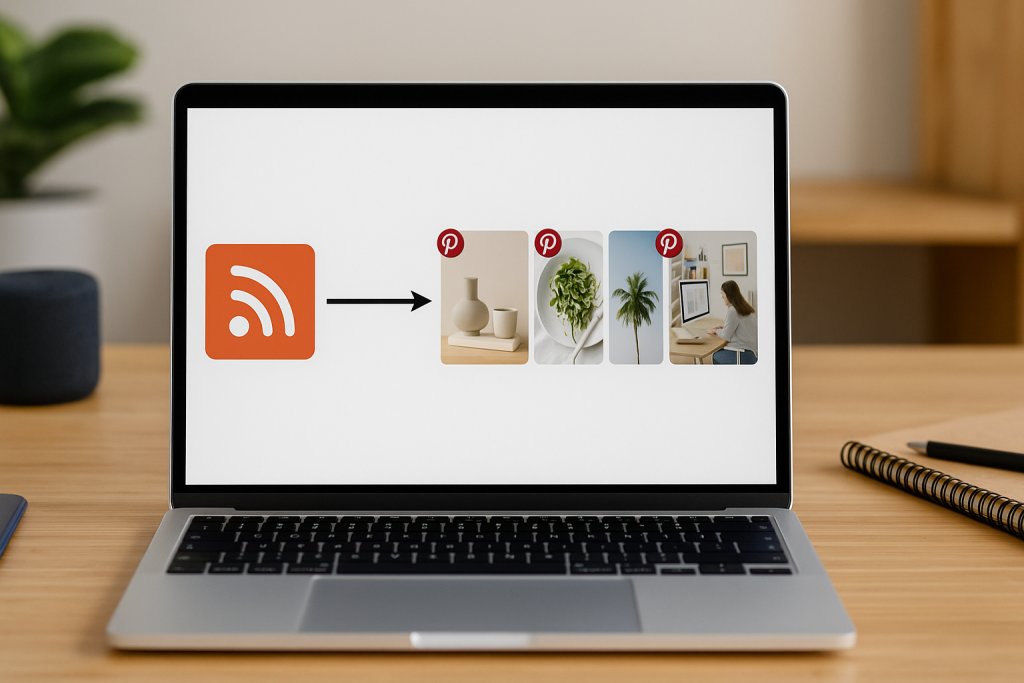
If you’re a serious blogger, marketer, or creator, you’ve probably realized that pinning everything by hand just doesn’t scale. It’s not just tedious; it’s a genuine bottleneck to your growth.
To really make an impact on Pinterest, you have to move past one-off saves and build an automated system. This is how you turn a daily chore into a powerful, hands-off workflow.
Automation tools are designed to watch your website or your favorite blogs for new content.
The moment you publish a new article, these tools can automatically create and share multiple, well-designed Pins to all your relevant boards.
Imagine that—your latest product or post gets immediate visibility without you ever having to open the Pinterest app.
At the heart of this magic is something called an RSS feed. You can think of your site’s RSS feed as a live, updating list of your newest content.
Automation platforms, like Post Paddle, tap into this feed and instantly turn new blog posts into fresh Pins.
Setting Up an Automated Workflow
This kind of “set it and forget it” approach has some serious advantages that you just can’t get with manual pinning.
- Stay Consistently Active: Automation keeps your account buzzing with a steady stream of new Pins, which is a huge signal to the Pinterest algorithm. This helps you maintain momentum even on your busiest weeks.
- Get Your Time Back: We’re talking about reclaiming hours every single week. Instead of getting bogged down in the repetitive task of pinning, you can pour that energy back into what you do best: creating amazing content.
- Pin Strategically: You can set up smart rules to distribute your content to different boards over several days or weeks. This maximizes its reach without ever looking spammy.
The image below breaks down the manual pinning process, visually showing all the steps that a good automation tool handles for you instantly.
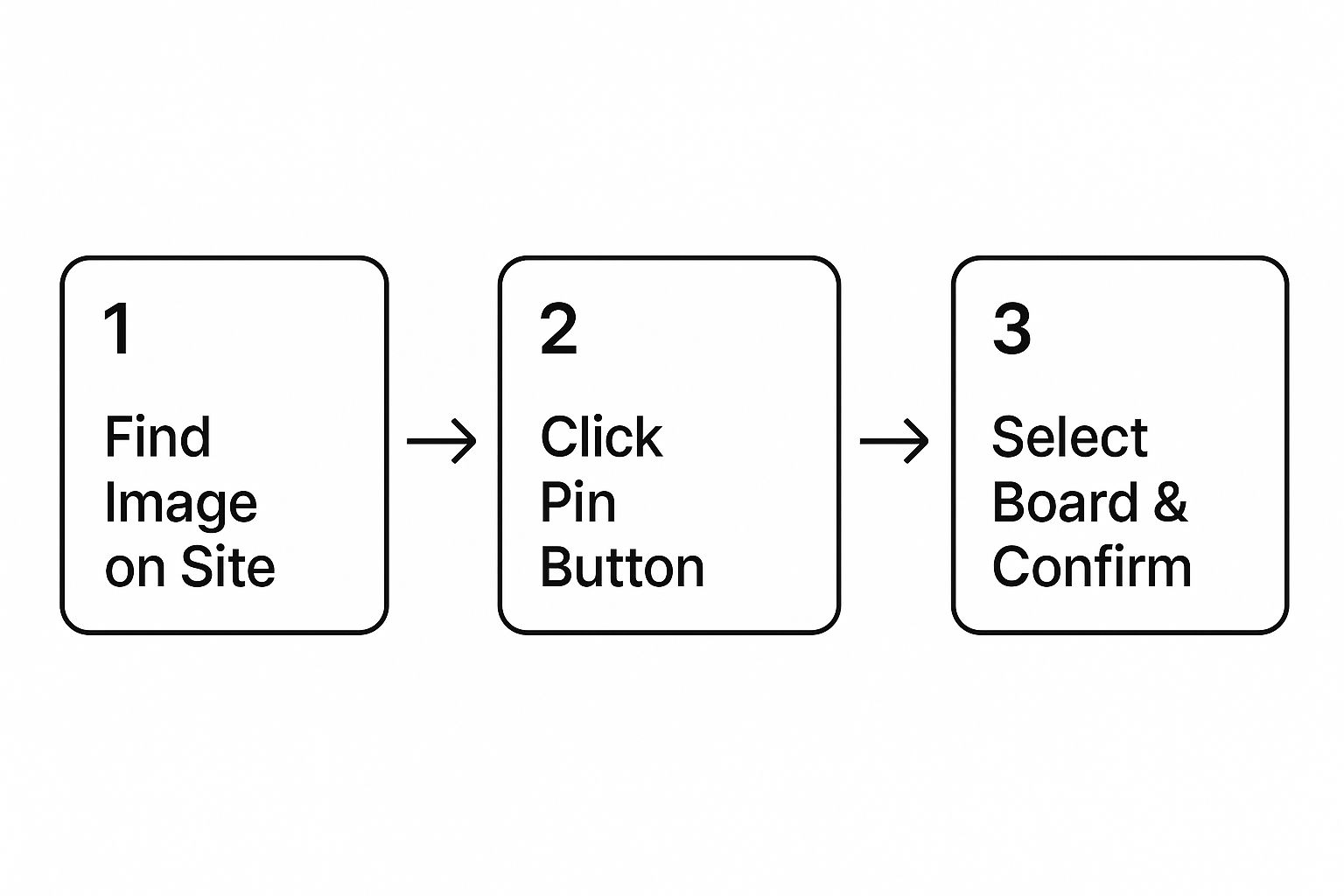
As you can see, each manual Pin requires quite a few clicks. Automation takes care of all of that in the background.
To give you a clearer picture, let’s compare the different ways to get images onto Pinterest.
Comparison of Pinning Methods
| Method | Best For | Speed | Effort Required |
|---|---|---|---|
| Pinterest Browser Button | Pinning one-off images you discover while browsing. | Fast for single Pins | Low (per Pin) |
| Manual Pin Creation | Uploading custom-designed Pins or content from your computer. | Slow | High (per Pin) |
| Automated Pinning (Post Paddle) | Scaling content promotion from your blog or e-commerce site. | Instant & Continuous | Very Low (after initial setup) |
Each method has its place, but for creators focused on growth, automation is where the real power lies.
By setting up an automated system, you’re not just saving time; you’re building a reliable content distribution engine.
It ensures a consistent presence and frees you up to think bigger picture about your brand’s growth.
To explore this further, our guide on how to schedule Pins on Pinterest provides a detailed walkthrough of setting up these powerful workflows.
From Pinning to Winning Best Practices
Knowing how to pin from a website is just the starting line. The real magic happens when you start pinning strategically, turning random saves into a powerful method for driving traffic and building your brand.
It’s about moving beyond simple bookmarking and curating your content with a clear purpose.
Everything starts with your Pin’s description. Leaving this blank is one of the biggest missed opportunities on the platform. You need to write a detailed, keyword-rich summary.
Seriously, think about what words you would type into the search bar to find that exact piece of content. A Pin with a solid description is exponentially more likely to pop up in search results and home feeds.
Elevate Your Pinning Game
Beyond writing great descriptions, a few other habits will make your Pins work harder for you and really stand out.
- Choose the Right Board: Don’t just dump everything onto one generic board. Get specific. Instead of a single “Home” board, create niche boards like “Modern Farmhouse Kitchen Ideas” or “Minimalist Living Room Decor.” This not only keeps your profile tidy for followers but also gives Pinterest’s algorithm clear signals about your content.
- Always Check the Link: Broken links are the worst. Before you hit save, take a quick second to click through and confirm the Pin leads to the correct, original source. This is basic etiquette for respecting creators, but it’s absolutely non-negotiable if you’re a business trying to drive traffic back to your own site.
A common mistake I see is treating all content the same. You can often pin inspirational content (like home decor ideas) more frequently from a single URL than you can educational content (like a how-to guide). Why?
Because users are happy to save multiple beautiful images from one source, but they only need the guide once.
To really see results, you need to understand how pinning fits into your larger social media content strategy. Timing is also a huge piece of the puzzle. Knowing the best time to pin on Pinterest can make or break your reach.
Making these small adjustments can elevate your pinning from a simple hobby to a powerful traffic-driving machine.
Turn Saved Links into High-Performing Pins
Now that saving content from any website is second nature, the real win comes from how well those pins perform.
The free Pin Optimization Checklist from the Pinterest Toolkit helps review every save before it goes live—image size, vertical dimensions, text overlay, keywords, branding and link checks.
Use it as a quick final pass for pins created from articles, product pages and blog posts so each one is built to rank in search, earn saves and send steady traffic back to your site.
Got Pinning Problems? Let’s Solve Them.
Even once you get the hang of pinning, you’ll inevitably hit a snag. What happens when a website just won’t cooperate, or when Pinterest grabs a completely random image from the page?
Let’s walk through some of the most common issues and how to fix them.
What if a Website Has No “Pin It” Button?
So you’ve found the perfect image, but there’s no “Pin it” or share button in sight. Don’t worry, this happens all the time. Your go-to solution is the good old copy-and-paste method.
Just grab the URL from your browser’s address bar, head over to Pinterest, and look for the option to create a Pin by saving from a site. This little trick works wonders and can usually pull images from pages that don’t make it easy.
Why Is Pinterest Grabbing the Wrong Image?
This is a classic. You try to pin a stunning hero image, but the browser button only offers you the site’s logo or a tiny, pixelated thumbnail. It’s frustrating, but it’s usually just a quirk in how the website was built.
When this happens, fall back on the manual method I just mentioned. Copying the URL and pasting it directly into Pinterest often gives you a much better selection of images to choose from, letting you pick the right one.
How to Pin Without Being Spammy
Pinning etiquette is crucial. The most important rule? Always make sure your Pin links back to the original source. This isn’t just good manners; it gives proper credit to the creator and lets other Pinners find the original article or product. Never, ever upload someone else’s image and link it to your own website.
One question I get a lot is about how often to pin from the same URL. For something like a recipe or a home decor post with lots of great photos, feel free to create multiple Pins.
But for a single piece of educational content, pinning the same link repeatedly in a short time can feel spammy. My advice is to spread those Pins out over a few days or even weeks.